Top 10 Must-Have Gadgets For Creatives

Are you trying to figure out which gadgets will make your creative workflow faster, smoother, and more enjoyable?
Top 10 Must-Have Gadgets For Creatives
This list highlights practical tools that meaningfully improve how you create, edit, and present your work. Each gadget is chosen for real-world benefit: speed, accuracy, ergonomics, or portability.
Why these gadgets matter
Choosing the right gadgets helps you spend less time fighting tools and more time making. You’ll get suggestions for features to prioritize, setup tips, and a few recommended use cases so you can match each gadget to how you actually work.
How to use this guide
This guide is meant to be practical and actionable. Read the whole list for a full studio setup, or jump to the gadgets that best match your current needs.
1. High-resolution color-accurate monitor
A high-quality monitor is one of the most impactful upgrades for visual creators. You’ll see finer detail, truer color, and more accurate contrast so your edits translate better across screens and in print.
Why you need it
If you’re doing photo retouching, video grading, illustration, or design, an inaccurate monitor means time wasted correcting work that won’t look right elsewhere. A color-accurate display reduces guesswork and client revisions.
Key features to prioritize
You should look for coverage of color spaces (sRGB, Adobe RGB, DCI-P3), resolution, panel type (IPS or OLED), and factory calibration. Connectivity like USB-C with power delivery is also helpful for a cleaner desk.
| Feature | Why it matters |
|---|---|
| Color gamut (sRGB/Adobe RGB/DCI-P3) | Ensures a wider range of reproducible colors |
| Resolution (1440p/4K) | More pixels = more detail for editing |
| Panel type (IPS/OLED) | Better viewing angles and color consistency |
| Calibration support | Keeps colors accurate over time |
| USB-C/Thunderbolt | One-cable connection for laptop creators |
Practical setup tips
Place the monitor at eye level and about an arm’s length away to reduce neck strain. Use a monitor hood or position lighting to avoid screen reflections. If you work in both print and web, keep two color profiles ready and calibrate on a schedule.
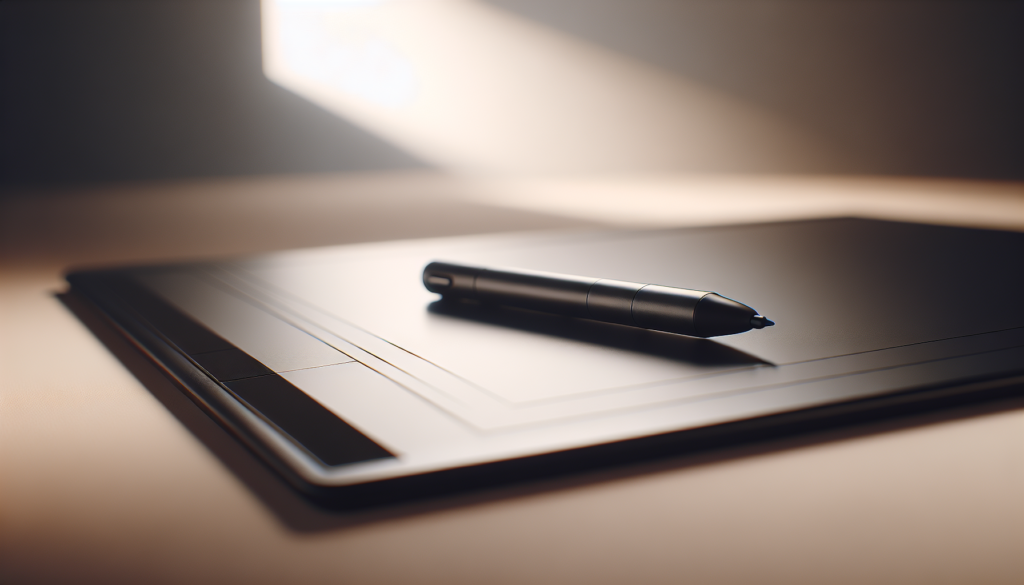
2. Graphics tablet / pen display
A pressure-sensitive tablet gives you natural, expressive control for drawing, painting, retouching, and precise selections. You’ll feel more like you’re working with traditional tools while retaining the advantages of digital editing.
Types and when to pick each
You can choose between a non-display tablet, a pen display (screen you draw on), or a tablet computer (iPad Pro/Surface). Non-display tablets are affordable and precise; pen displays are intuitive, and tablet computers add portability and apps.
| Type | Best for | Pros | Cons |
|---|---|---|---|
| Non-display tablet | Photo editing, budget sketching | High precision, lower cost | Less natural hand-eye coordination |
| Pen display | Digital painting, illustration | Direct drawing on-screen | More expensive, bulkier |
| Tablet computer | On-the-go concepting, mixed media | Portable, app ecosystem | Higher cost, may need accessories |
Features to look for
Prioritize pressure sensitivity (2048+ levels), tilt recognition, low parallax, and a comfortable pen grip. Buttons or express keys speed up repetitive tasks. If you use specific software, check driver compatibility.
Tips for integration
Map common shortcuts to hardware buttons or a separate macro pad. Calibrate the pen to the monitor and set pen pressure curves in your software. If you’re switching from mouse to pen, give yourself time to adjust—your productivity will increase significantly.
3. Color calibration device
A hardware color calibrator ensures your monitor and other displays show color accurately. You’ll get consistent color between devices and avoid surprises when prints arrive or files are viewed on different screens.
Why calibration matters
Displays shift color and brightness over time. Without calibration, what looks perfect on your screen can appear wrong for clients or in print. Calibration helps standardize color across devices and workflows.
What the device does
A calibrator measures display output and creates a profile that corrects color, contrast, and gamma. Some calibrators also support projectors and mobile devices.
| Popular models | Best for |
|---|---|
| X-Rite i1Display Pro | Professional photographers and designers |
| Datacolor SpyderX | Budget-conscious creators |
| Calibrite ColorChecker | Studios needing print + video pipelines |
Calibration tips
Calibrate in the lighting conditions where you normally work, and do it at a regular cadence (monthly is common). Turn off dynamic contrast or color temperature presets on your monitor before calibrating for best results.
4. External NVMe SSD (portable)
Fast external storage is essential for moving large files, working with high-resolution video, and backing up projects quickly. You’ll spend less time waiting and more time creating.
Why speed and reliability matter
Large photo and video files can stall your workflow if storage is slow. NVMe SSDs offer much faster transfer rates than SATA drives and are compact enough to travel with you.
Key specs to compare
Look for PCIe NVMe speeds, USB-C 3.2 Gen 2 or Thunderbolt 3/4 interfaces, ruggedness, and capacity. Consider encryption and hardware durability if you travel.
| Use case | Recommended specs |
|---|---|
| Photo editing on the go | 1 TB NVMe SSD, USB-C 10 Gbps |
| Video editing (4K/6K) | 2 TB+, Thunderbolt 3/4, sustained write speeds |
| Backup & archiving | 2–4 TB, hardware encryption optional |
Workflow tips
Keep a dedicated drive for active projects and another for backups. Use RAID or versioned backups for important client projects. Label drives clearly and keep a backup in a separate physical location.
5. Ergonomic mouse or pen-enabled input device
A precise, comfortable pointing device reduces strain and speeds up detailed work like retouching and vector editing. You’ll have smoother control for long sessions and fewer repetitive strain complaints.
Which option fits you best
If you do a lot of detailed brushwork or need fine control, a pen-enabled tablet or stylus provides natural input. If your work is interface-heavy with lots of gestures, an ergonomic mouse with extra buttons is likely better.
| Device type | Best for | Benefits |
|---|---|---|
| Ergonomic mouse (e.g., Logitech MX Master) | Productivity, editing | Custom buttons, comfortable grip |
| Pen-enabled input | Painting, retouching | Natural stroke control, pressure sensitivity |
| Trackball | Limited desk space, precise control | Minimal hand movement, steady control |
Customization tips
Program buttons for common shortcuts like undo, brush size, and pan. Adjust pointer speed and acceleration in your OS and software to match the kind of work you do. A vertical mouse can reduce wrist pronation if that causes discomfort.
6. Mechanical keyboard with macros
A tactile mechanical keyboard with programmable keys lets you assign complex shortcuts or macros, saving time during repetitive tasks. You’ll work faster and more ergonomically when common operations are one-press away.
Why a mechanical keyboard helps
Mechanical switches provide reliable feedback and may reduce typing fatigue. Programmability means you can set up different profiles for Photoshop, Premiere, Figma, or your favorite IDE.
Important features
Look for durable switches (Cherry MX, Gateron, etc.), hot-swappable options, onboard profiles, and a comfortable layout. A detachable wrist rest can improve ergonomics for long sessions.
| Feature | Benefit |
|---|---|
| Programmable macro keys | Speed up repetitive sequences |
| Hot-swappable switches | Customize feel without buying a new board |
| N-key rollover | Prevents missed simultaneous keystrokes |
| Bluetooth + wired modes | Switch between devices easily |
Setup advice
Create profiles per application, map the most-used functions to easy-to-reach keys, and maintain a clean, consistent labeling system. If you collaborate on multiple machines, consider cloud-syncable profiles or export/import tools.
7. USB-C / Thunderbolt docking station or hub
A docking station expands a laptop’s connectivity so you can plug into monitors, audio gear, storage, and Ethernet with one cable. You’ll get a tidier workspace and faster transitions between mobile and desktop work.
Why a dock improves your setup
Instead of juggling multiple cables, one connection to a dock restores your desktop environment instantly. It’s especially useful for laptop-based creatives who switch between locations.
Ports and specs to check
Make sure the dock supports your monitor resolution and refresh rates, provides enough USB ports, offers SD card slots if needed, and provides power delivery if you want single-cable charging.
| Port | Why it’s useful |
|---|---|
| HDMI/DisplayPort/USB-C video | Connect external monitors |
| Multiple USB-A/USB-C | Connect drives, tablets, audio interfaces |
| SD card reader | Quick media offload for cameras |
| Ethernet | Stable network for large uploads/downloads |
| Power delivery | Charge the laptop while connected |
Best practices
Choose a dock that matches your display and power needs (e.g., 100W PD for demanding laptops). Keep frequently swapped items on the dock while portable accessories remain on the laptop to limit cable wear.
8. Quality studio headphones and reference speakers
Accurate audio monitoring is essential for multimedia creators, podcasters, and video editors. You’ll produce sound that translates well to different playback systems and reduce the time spent correcting audio issues.
Headphones vs speakers
Headphones are great for detailed edits in non-ideal acoustic environments and for portable work. Reference speakers give you a realistic sense of how mixes will sound in a room. Ideally, you’ll have both.
| Option | Best for | Notes |
|---|---|---|
| Closed-back headphones | Recording, isolation | Reduces bleed during tracking |
| Open-back headphones | Critical listening | More natural soundstage in quiet spaces |
| Reference speakers | Mixing for room playback | Requires acoustic treatment for accurate results |
Key specs to consider
Look for a flat frequency response for accurate mixing, comfort for long sessions, and build quality. For speakers, consider room size and add basic acoustic treatment (bass traps, absorption panels).
Listening tips
Always check mixes on multiple systems (headphones, speakers, laptop, phone). Calibrate your listening level and avoid boosting bass on headphones to mimic small speakers; reference speakers and headphones can vary widely.

9. Smart lighting and color-controlled work lamps
Proper lighting reduces eye strain and helps you judge colors more accurately. Adjustable color temperature and brightness let you match your environment to the project—cooler light for detailed work, warmer for presenting prints.
Why lighting impacts your work
Ambient light affects how colors appear on your screen and in print. Glare and poor contrast make it harder to see details and can lead to mistakes. Good lighting simply makes you feel better and work more comfortably.
What to look for
Choose lamps with adjustable color temperature (2700K–6500K), high CRI (Color Rendering Index) for accurate color, and dimmable settings. For photography and product shots, full-spectrum LED panels or daylight-balanced lights are preferred.
| Lighting type | Best for | Tips |
|---|---|---|
| Desk lamps with adjustable color temp | General editing, design | Match color temp to your screen calibration |
| LED panels / softboxes | Photo/video shoots | Use diffusers for even light |
| Bias lighting for monitors | Reduce eye strain | Place behind monitor to increase perceived contrast |
Setup tips
Position key lights to reduce reflections on your monitor. Use neutral-colored walls or add a background with muted tones to avoid color casting. If you do color-critical work, try to maintain consistent room lighting when calibrating your monitor.
10. Mirrorless camera or advanced smartphone with stabilizer
A current-generation mirrorless camera or high-end smartphone gives you professional image and video quality for content creation, client work, and portfolio material. You’ll capture sharper photos and smoother video that elevate your presentations.
Choosing between mirrorless and smartphone
If you need shallow depth of field, interchangeable lenses, and advanced controls, a mirrorless camera is the right choice. If portability, quick editing, and social platforms matter most, a flagship smartphone can do a lot with the right lenses and apps.
Recommended accessories
Add a fast prime lens for portraits and a versatile zoom for events or location work. A small gimbal stabilizer helps with smooth motion for video, and an external microphone improves audio capture for interviews or vlogs.
| Setup | Best for | Advantages |
|---|---|---|
| Mirrorless + prime lens | Commercial photography, cinematic video | High image quality, lens flexibility |
| Smartphone + gimbal | Social content, on-the-go shoots | Lightweight, immediate sharing |
| Hybrid (mirrorless + smartphone) | Mixed workflows | Best of both worlds: quality + convenience |
Shooting and post tips
Shoot in RAW when possible to retain editing flexibility. Use manual controls for exposure and focus when you want consistent results. Organize images with a reliable file naming and folder structure so you can find assets easily during editing.
Quick comparison table of the top 10 gadgets
This table summarizes the main benefits and primary use cases for quick decision-making. You’ll be able to match gear to the tasks you care about.
| Gadget | Primary benefit | Best for |
|---|---|---|
| High-resolution monitor | Accurate color and detail | Photo/video editors, designers |
| Graphics tablet / pen display | Natural drawing and precise edits | Illustrators, retouchers |
| Color calibration device | Consistent color across devices | Print and color-critical work |
| External NVMe SSD | Fast portable storage | Video editors, photographers |
| Ergonomic mouse / pen input | Reduced strain and fine control | Retouchers, long sessions |
| Mechanical keyboard with macros | Faster workflows | Power users, editors |
| USB-C / Thunderbolt dock | Single-cable desktop setup | Laptop creatives |
| Studio headphones & speakers | Accurate audio monitoring | Podcasters, editors |
| Smart lighting | Better visual environment | Photographers, designers |
| Mirrorless camera / smartphone | High-quality capture | Content creators, professionals |
Budgeting and prioritization
Not all creators need every gadget at once. First focus on items that reduce bottlenecks: a reliable monitor, quick storage, and a comfortable input device. When your core workflow is solid, add specialized tools like calibration devices, studio speakers, or a pen display.
Suggested priority by role
Decide what you do most and prioritize accordingly: photographers may pick monitor + calibrator + SSD first; illustrators might choose a pen display + tablet computer; videographers often need fast storage + camera + monitors.
| Role | First 3 gadgets to consider |
|---|---|
| Photographer | Monitor, calibrator, external NVMe SSD |
| Illustrator | Pen display, mechanical keyboard, color-accurate monitor |
| Video editor | Thunderbolt SSD, high-res monitor, dock |
| Content creator | Smartphone/mirrorless, gimbal, external SSD |
Maintenance and longevity tips
You want gear that lasts and keeps performing. Regular maintenance prevents surprises and data loss so you can focus on creative work without interruptions.
Care tips for longevity
Keep firmware and drivers updated, clean vents and ports to prevent overheating, and use surge protection. For storage, use a 3-2-1 backup strategy: 3 copies, 2 different media types, 1 offsite copy.
When to upgrade
Upgrade when your current tools slow down important tasks or when new hardware provides a substantial productivity boost. Don’t upgrade for features you won’t use—prioritize improvements that match your actual workflow.
Workflow and integration advice
The best gadgets only help if they’re integrated sensibly. You’ll get more from gear when you streamline file paths, naming, and backup habits.
Simple organizational rules
Use clear folder structures and consistent naming conventions. Keep active projects on fast internal or external drives, archive older projects to larger, slower drives or cloud storage, and tag files with metadata for quick searching.
Automation and macros
Automate repetitive tasks in your apps and use macros on your keyboard or mouse to reduce manual steps. Small time savings add up across projects, freeing up time for ideation and iteration.
Final considerations before buying
Consider workflow compatibility, future-proofing, and total cost of ownership. Think about compatibility with your current OS, potential accessory costs, and whether the gadget solves a current pain point.
Questions to ask before purchase
- How will this gadget change my daily workflow?
- Does it work with my existing software and devices?
- Is the performance gain worth the cost?
- Will I need additional accessories to get full value?
Closing thoughts
As you choose gadgets, prioritize what reduces friction in your creative process. Start with the tools that help you produce better work more consistently, then add items that refine speed, comfort, or quality. When your tools are aligned with your workflow, you’ll have more time and energy to focus on the creative decisions that matter most.
Additional resources
If you want help choosing specific models or figuring out compatibility with your current setup, you can list what you already own and what creative tasks you do most. That way you’ll get tailored recommendations that fit both your budget and your workflow.