How To Build Your Own Home Studio For Content Creation
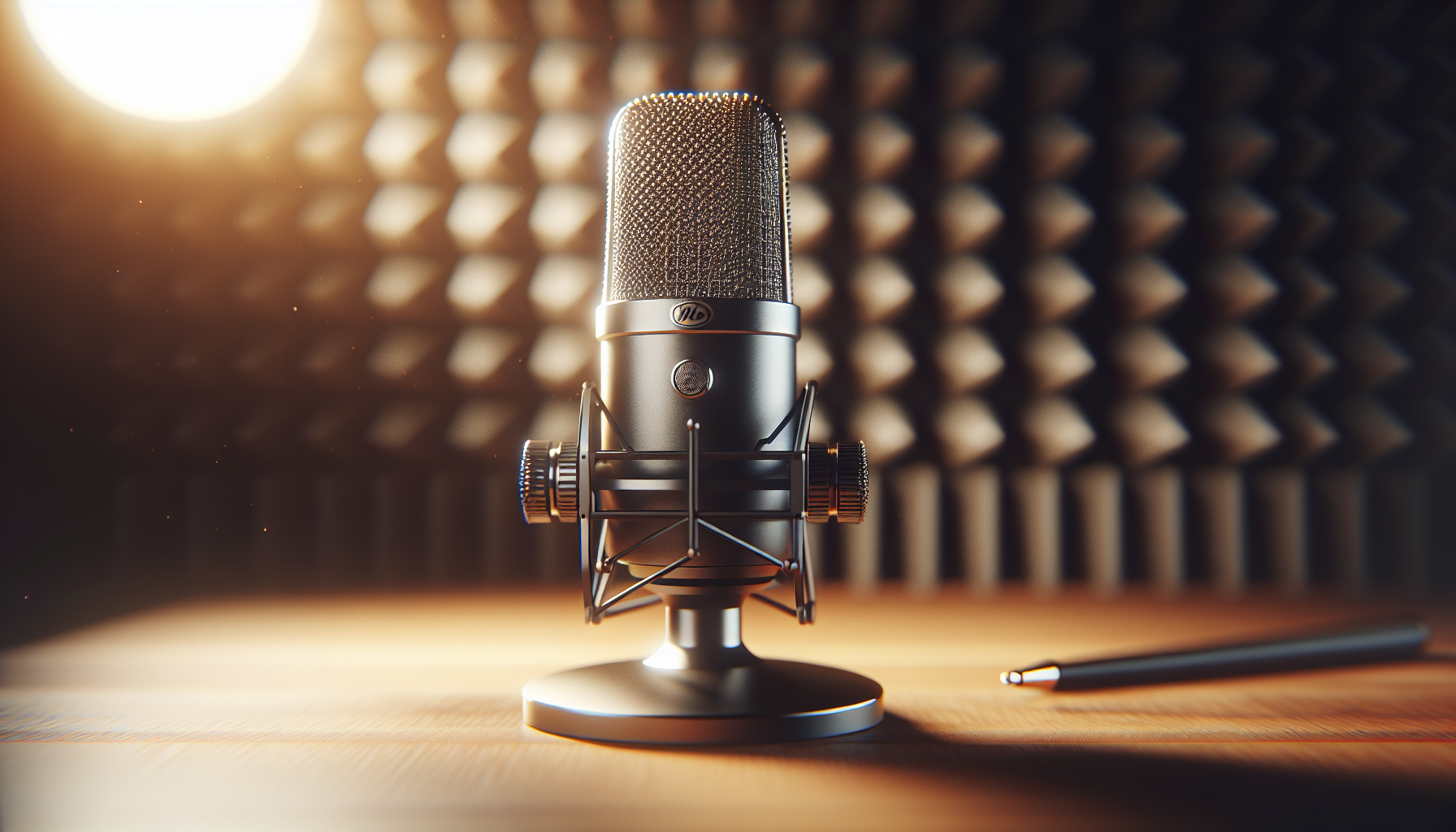
Are you ready to build your own home studio for content creation and turn your ideas into polished videos, podcasts, or live streams?
How To Build Your Own Home Studio For Content Creation
This guide walks you through every step of planning, designing, equipping, and optimizing a home studio that fits your goals and budget. You’ll get practical advice on room selection, acoustics, audio, lighting, video gear, editing, and workflows so you can create consistently professional content.
Start with a clear plan
Before you buy anything, decide what type of content you’ll produce and what “good enough” looks like to you. Different formats (talking-head videos, music recording, ASMR, live streaming, product demos) have different priorities. Identifying your top needs helps you spend where it matters.
Spend time writing a simple brief: the content type, target audience, publish platforms, recording frequency, and a realistic budget. This clarity will prevent impulse purchases and help you scale later.
Define goals and content types
Be specific about the formats you’ll create and where you’ll publish. You’ll need different gear for long-form YouTube videos, short-form social clips, podcast episodes, or multi-person live streams.
Write down typical video lengths, whether you’ll need remote guests, and how often you’ll publish. Realistic volume estimates will determine storage and backup requirements.
Set a realistic budget
Decide on a total budget and break it into categories: audio, video, lighting, acoustic treatment, computer/software, and miscellaneous. You don’t need to buy everything at once — prioritize audio and lighting first, then camera and acoustics.
A tiered budget helps you choose gear that delivers the best results for your money. Later sections include example budget builds to help you compare options.
Choose the right room
Pick a quiet, low-traffic room with controllable lighting. Rooms with irregular shapes and soft furnishings often sound better than empty boxes. If possible, avoid rooms with parallel walls and large reflective surfaces.
Consider electrical outlets, ventilation noise, and how close you are to noisy appliances or street traffic. You’ll be improving the room acoustics, but starting with a quiet space makes a huge difference.
Room acoustics: make your audio sound professional
Good audio is one of the most noticeable markers of quality. You can get excellent results with modest gear if you control room reflections and background noise.
Understand room problems
Rooms create problems like echoes, flutter, and low-frequency buildup. These issues can make dialogue sound boxy or hollow. Address the first reflections and bass modes before investing heavily in mics or preamps.
Start by listening: clap your hands, talk, and listen for flutter or prolonged reverberation. That tells you where treatment will help most.
Acoustic treatment options
You don’t need to spend a fortune. Strategic placement of a few absorbers and bass traps often gives the biggest improvements. You’ll want to treat the first reflection points, ceiling above your recording position, and corners for bass control.
Table: Common acoustic treatment materials and use
| Material | Typical Use | Strengths | Notes |
|---|---|---|---|
| Acoustic foam panels | First reflections, mid/high absorption | Affordable, easy to mount | Less effective below ~200 Hz |
| Fiberglass/rockwool panels | Broadband absorption | Better low-frequency control than foam | Requires frames or fabric covers |
| Bass traps (corner) | Low-frequency control | Reduces boominess | Thick traps (4″+) perform best |
| Diffusers | Preserve natural room ambience | Maintain bright, live sound without echoes | Best for larger rooms |
| Heavy curtains/rugs | Absorb reflections | Inexpensive, flexible | Good for early treatment and aesthetics |
| Cloud panels (ceiling) | Ceiling reflections | Reduces slap and echo | Helpful for seated setups |
DIY vs. commercial panels
DIY panels using mineral wool or rigid fiberglass wrapped in breathable fabric often outperform cheap foam and cost less than premium commercial panels. You can build bass traps from stacked panels for deeper absorption.
Always leave a small air gap behind panels when possible; it improves low-frequency performance. Position panels at reflection points: sit in your usual recording spot and have a friend move a mirror along the wall — where you can see your mic in the mirror from that spot is a reflection point.
Microphones and audio signal chain
Microphone choice and placement matter more than a high-end model alone. You’ll also need an audio interface, cabling, and monitoring.
Microphone types and when to use them
Choose the microphone type by content type and environment. Dynamic mics are forgiving in untreated rooms; condensers capture detail but may reveal room issues.
Table: Microphone types at a glance
| Mic Type | Best for | Pros | Cons |
|---|---|---|---|
| Dynamic (e.g., Shure SM7B) | Podcasting, loud sources, untreated rooms | Rejects room noise, durable | Needs gain/preamp power |
| Large-diaphragm condenser | Studio vocals, acoustic instruments | Warm, detailed sound | Sensitive to room reflections |
| Small-diaphragm condenser | Instrument detail | Accurate high-frequency response | Needs careful placement |
| Lavalier | Interviews, mobility | Small, hands-free | May pick up clothing rustle |
| USB mics | Beginners, simple setups | Plug-and-play | Limited upgrade path, less flexible |
Audio interface and preamps
If you use XLR mics, an audio interface provides preamps and analog-to-digital conversion. Look for interfaces with clean gain, low latency monitoring, and reliable drivers.
If you choose a USB mic, you skip the interface, but you gain less flexibility — you can still add an interface later with minimal disruption if you choose a mic that supports XLR.
Microphone placement and room interaction
Position the mic close to the source (2–12 inches for mics like the SM7B) to maximize direct sound and reject room reflections. Use pop filters or windshields to reduce plosives for vocal work.
If you’re recording multiple people, use cardioid patterns oriented correctly and consider individual isolation shields or gobos when space allows.
Headphones and monitoring
Use closed-back headphones for tracking to avoid bleed. Invest in a pair of neutral-sounding open-back headphones or studio monitors for mixing. Check mixes on multiple devices (phone, laptop speakers, earbuds) to ensure translation.
Cameras, lenses, and video basics
Video quality depends on optics, sensor, and lighting. You can produce great-looking content with a smartphone or a mirrorless camera. Prioritize lens selection and lighting over megapixel count.
Camera options and trade-offs
Table: Camera choices by use case
| Option | Best for | Pros | Cons |
|---|---|---|---|
| Smartphone | Social clips, convenience | Great sensors; easy workflow | Limited framing, less manual control |
| Webcam (higher-end) | Live streaming, simple setups | Plug-and-play | Limited depth of field |
| Mirrorless/DSLR | Talking heads, cinematic look | Interchangeable lenses, large sensors | More setup, lens cost |
| Camcorder | Long recordings | Built for recording | Bulkier, less cinematic |
Lenses and framing
A lens with a focal length that provides flattering perspective for your space is key. For talking-head videos, 35–50mm (full-frame equivalent) is common. Wider lenses can distort faces when too close.
Frame your subject with headroom and eye-level roughly one-third from the top. Use depth of field to separate subject from background, which adds polish.
Camera settings
For cinematic motion use 24–30 fps; for smooth motion or slow-motion, use 60 fps or higher. Set shutter speed to roughly double your frame rate (180-degree rule) for natural motion blur. Use manual exposure and white balance for consistency.
Record in the highest quality codec your workflow can handle, but be mindful of storage and editing performance.
Stabilization and mounting
Use a sturdy tripod and gimbal if you plan on movement. For multi-camera setups, match white balance and color profiles for easier grading.
Lighting: make subjects look their best
Lighting shapes how viewers perceive your content. Good lighting can mask basic camera shortcomings.
Three-point lighting basics
Three-point lighting uses a key light, a fill light, and a back (or rim) light. The key provides the main illumination, the fill reduces shadows, and the backlight separates subject from background.
Soft light sources produce flattering results. Softboxes, diffusion panels, or large LED panels are ideal.
Types of lights and when to use them
Table: Lighting types and characteristics
| Light Type | Best for | Pros | Cons |
|---|---|---|---|
| LED panels | Versatile, color temperature control | Low heat, efficient | Harder to get very soft without modifiers |
| Softboxes | Soft, flattering light | Good for key/fill | Bulkier |
| Ring lights | Beauty shots, vlogging | Easy catchlight | Centered shadows, sometimes unflattering |
| Fresnel spot | Precise control, highlights | Focused beam | Hotter and heavier |
| Practical lights (lamps) | Background styling | Adds warmth and depth | Not primary illumination |
Color temperature and consistency
Match all your lights to the same color temperature (e.g., 5600K for daylight or 3200K for tungsten) to avoid mixed color casts. When using LEDs, set them to the same CCT and gel or color correct in post if needed.
Lighting tips for small rooms
In small spaces, place lights further and use diffusion to soften them. A hair/rim light behind the subject can add perceived depth without requiring a large space.

Backgrounds and set dressing
Your background should support your content and not distract from your subject. Keep it tidy and intentional.
Options for backgrounds
- Plain walls with texture or color: simple and professional.
- Shelves with curated items: adds personality and visual interest.
- Green screens: allow full background replacement if you need flexibility, but require even lighting and chroma key best practices.
- Fabric or printed backdrops: consistent and portable.
Branding and consistency
Include elements that reflect your brand (colors, logo, props) without overwhelming the frame. Design a background that’s easy to reproduce for every shoot so your videos look cohesive.
Computer, editing software, and storage
Your computer should match the demands of your workflow. Video editing and audio production can require fast CPUs, plenty of RAM, and fast storage.
Editing software choices
Choose software you can use productively. Popular options include:
- Adobe Premiere Pro / Audition
- Final Cut Pro (Mac)
- DaVinci Resolve (excellent free and paid versions)
- Reaper / Audacity (audio-focused)
Pick tools you can master — efficiency beats feature overload.
Hardware basics
Aim for a system with:
- Multi-core CPU (recent generation)
- 16–32 GB RAM for HD/4K workflows
- Fast SSD for OS and active projects
- Larger HDDs or network-attached storage for archives
- Dedicated GPU for accelerated effects and color grading
Backup and file management
Implement a 3-2-1 backup strategy: at least three copies, on two different media, with one off-site. Use consistent folder naming and metadata so you can find assets quickly.
Live streaming essentials
Streaming adds network and encoding considerations. You’ll need stable upload bandwidth, encoding software/hardware, and low-latency audio.
Internet and bitrate
Test your upload speed and reserve at least 25–50% headroom for stability. For 1080p60 streaming, plan for 6–8 Mbps upload; for 720p30, 3–4 Mbps. Use wired Ethernet when possible.
Encoder settings and tools
OBS Studio is a popular free option that supports streaming and recording. Use hardware encoders (NVENC, QuickSync) if available to reduce CPU load. Match your output resolution and bitrate to your internet and platform limits.
Streaming peripherals
Use a separate microphone or mixers for chat/voice, a capture card if streaming from a camera, and a second monitor for chat moderation and scene control.
Workflow, ergonomics, and cable management
A consistent, efficient workflow helps you produce more content with less stress. Good ergonomics keep you comfortable during long sessions.
Workflow tips
Create templates for scene setups, recording presets, and editing sequences. Batch tasks (record many videos in one session, then edit) to maximize focus.
Use marker systems and rough cuts to streamline edits. Keep presets for color grading and audio processing.
Cable management and power
Label cables, use cable ties and channels, and keep power strips accessible. Protect peripherals with surge protectors and UPS units for critical equipment.
Ergonomics
Position monitors and cameras to avoid neck strain. Use comfortable seating, elevated mic stands, and footrests if you sit for long periods.
Budget builds and shopping checklist
Here are example builds to match common budgets. Prices are estimates and vary by region and time.
Table: Budget studio builds
| Component | Budget (~$500–$800) | Mid (~$1,500–$3,000) | Pro (~$4,000+) |
|---|---|---|---|
| Microphone | USB cardioid mic ($50–$150) | XLR dynamic + interface ($200–$600) | Broadcast dynamic + cloud lifter + pro interface ($800+) |
| Camera | Smartphone or budget webcam ($0–$200) | Mirrorless entry + kit lens ($700–$1,200) | Mirrorless/FF + lenses ($2,000+) |
| Lighting | 2 LED panels or softbox ($100–$200) | 3-point LED kit ($300–$600) | Studio lights, modifiers ($800+) |
| Acoustic treatment | DIY panels, rugs ($50–$200) | Mixed commercial panels + bass traps ($300–$700) | Professional treatment ($1,000+) |
| Computer/storage | Existing PC + external HDD ($100–$300) | Mid-range PC/Mac with SSD ($1,000–$2,000) | High-end workstation ($3,000+) |
| Misc | Tripod, boom arm, pop filter ($50–$150) | Tripod, monitor, capture card ($200–$600) | Pro tripod, multiswitch, hardware encoder ($500+) |
Purchase checklist
- Microphone (with cables)
- Audio interface (if using XLR)
- Headphones (closed-back for tracking)
- Camera and lens or high-quality webcam
- Tripod or mounting system
- Key light and fill light (LED panels or softboxes)
- Backlight or background light
- Acoustic panels or rugs/curtains
- Computer with sufficient specs
- Storage drives and backup solution
- Power strips and surge protection
- Cables, adapters, and connectors
- Spare batteries and memory cards
Setup checklist and testing
Use a pre-shoot checklist to ensure consistency. Test and document settings so you can reproduce them quickly.
Table: Basic setup checklist
| Step | What to check |
|---|---|
| Room | Noise sources off, doors/windows closed |
| Acoustic | Panels in place, first reflections treated |
| Camera | Battery charged, codecs set, manual exposure |
| Audio | Gain set, levels peaking around -6 dB, monitoring |
| Lighting | Color temp matched, shadows controlled |
| Background | Clean, branded, no distractions |
| Connectivity | Internet wired, streaming tested |
| Backup | Recording drive ready, backup recording (if needed) |
Perform sound and picture tests
Record a short test clip and listen on multiple devices. Adjust mic distance, EQ, and compression if needed. Check framing, focus, and color balance on camera.
Troubleshooting common problems
You’ll encounter issues — here are fast fixes for frequent problems.
- Hum or buzz in audio: Try different power outlets, use balanced cables, ground lift adapters, or DI boxes.
- Room echo: Add absorption at first reflection points; move mic closer to the source.
- Poor audio levels: Use gain staging; aim for peaks around -6 dB without clipping.
- Flickering lights or color shift: Check lights for stable output; use same color temperature and avoid fluorescent fixtures.
- Stuttering video/streaming: Lower bitrate, switch to hardware encoder, use wired Ethernet, close background apps.
Maintain and scale your studio
Keep an inventory of gear, serial numbers, and purchase receipts. Clean microphones and lenses regularly, and keep backups of project files. When you’re ready to scale, upgrade the weakest link first — often audio fidelity or lighting yields the most visible improvement.
How to plan upgrades
Measure current bottlenecks. If editing is slow, upgrade storage or RAM. If audio needs more polish, add a better mic or acoustic treatment. Prioritize improvements that raise content quality most efficiently.
Final tips to keep you productive
- Focus on consistency: lighting, sound, and framing that are repeatable will build your brand.
- Create templates for editing and recording to save time.
- Learn one tool well instead of many tools poorly.
- Monitor your workflow and regularly refine setup for comfort and speed.
- Start small, then improve. Good content depends more on clarity of message than on perfection of gear.
You now have a step-by-step plan to design and build a home studio that fits your goals and budget. Take one step at a time: pick a room, treat it acoustically, get a reliable mic and lights, and learn to use your tools. With steady improvements and consistent content, your studio will become a place where your ideas come to life.